Table of Contents
- # What is tablrr?
- # What Do You Need?
- # Step 1 - Connect Your Site
- # Step 2 - Set Up Your Operators in tablrr
- # Step 3 - Enable Operator Sync
- # Step 4 - Map Operators to Kemoku Reviews
- # Step 5 - Run Your First Sync
- # The End of Repetitive Data Entry
- # My Own Use Case: Kemoku Demos
- # Ready to Automate?
If you manage more than one affiliate site, you know the frustration of repetitive data entry. I was spending way too much time logging into separate WordPress dashboards just to tweak the same sportsbook data or ACF fields.
For example, for Kemoku reviews plugin, I maintain 3 demo websites - Paris, Havana, and Manila - and even though the demos contain dummy texts instead of actual information, I still need to update them every time I publish a new version of plugin.
To fix this, I started using tablrr as a central data hub.
What is tablrr?
tablrr.app is a listing and data management platform. Essentially, it serves as a "Headless CMS" specifically for affiliate data. It allows you to manage all your operator details such as bonuses, terms, logos, and links in one central dashboard instead of spreading that data across dozens of individual WordPress installs.
By connecting the two, tablrr handles the raw data management while Kemoku handles the front-end display and layouts on your WordPress site. Instead of manual data entry on every single site, you update your data once in tablrr, and it syncs to all your Kemoku reviews automatically via API.
Here is how you can set up the same automation for your network.
What Do You Need?
- Kemoku installed on one or more WordPress sites
- A tablrr account
- The tablrr WordPress plugin
Step 1 - Connect Your Site
The first thing you need to do is link your WordPress site to your tablrr account.
Get the plugin
Download the tablrr plugin directly from your account dashboard, install and activate it.
Add Your Website to tablrr
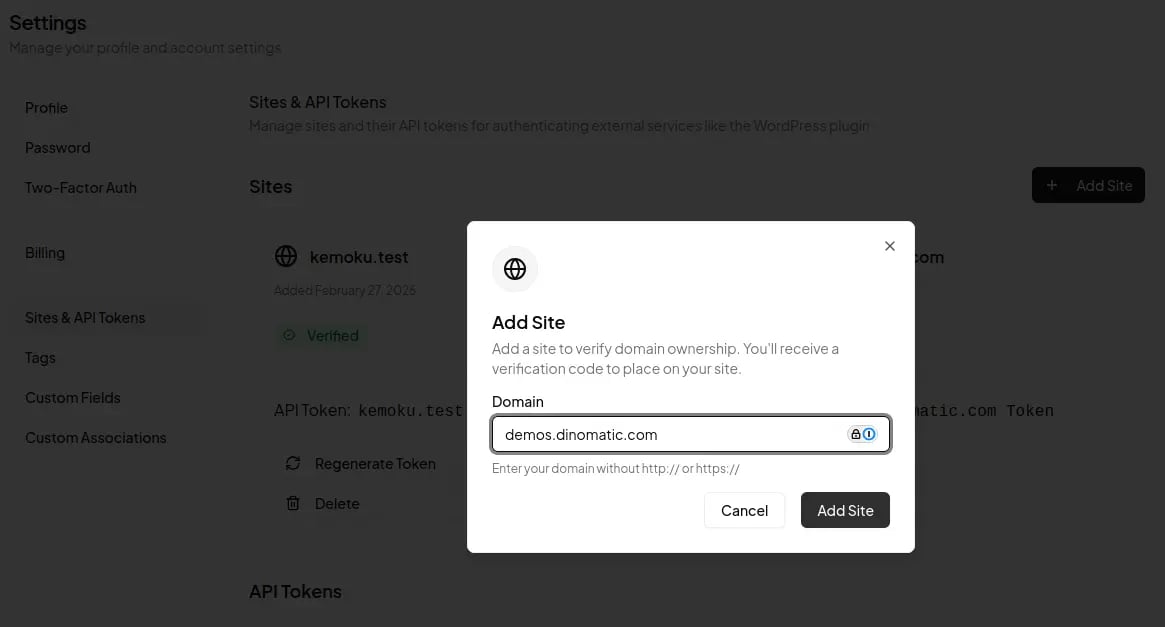
- Visit "Sites and API Tokens" page in your tablrr account and add your site. Once you enter the domain name, you'll receive a verification code.
- Enter the verification code in your tablrr plugin settings page in your website and click "Verify"
This will verify your website, create API token and save it in your settings; you don't need to do anything else.
Step 2 - Set Up Your Operators in tablrr
Now that your site is connected, you need to populate your tablrr dashboard with your sportsbook or casino data.
What is an "operator" in tablrr?
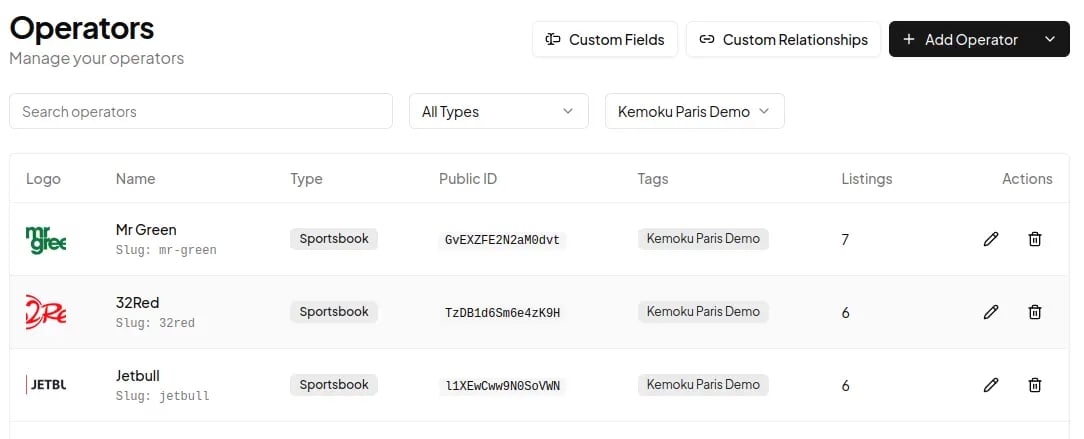
In the context of tablrr, an "operator" is simply the entity you are reviewing - usually a sportsbook or a casino. It has core fields such as name, description, link etc. as well as custom fields that you can define to add different type of data. Instead of having that operator's data (bonus amount, terms, link, etc.) saved locally on every WordPress site, you save it once in tablrr.
Importing your data
You don't need to manually recreate your reviews or map every field yourself. All you have to do is provide the URL of your existing website with Kemoku reviews. The entire import process is handled for you on the backend. Your data is pulled in, the fields are mapped, and everything is prepared so it is ready for the sync step.
Step 3 - Enable Operator Sync
Once your site is verified and your data is in tablrr, you need to turn on the automation.
The Sync Toggle
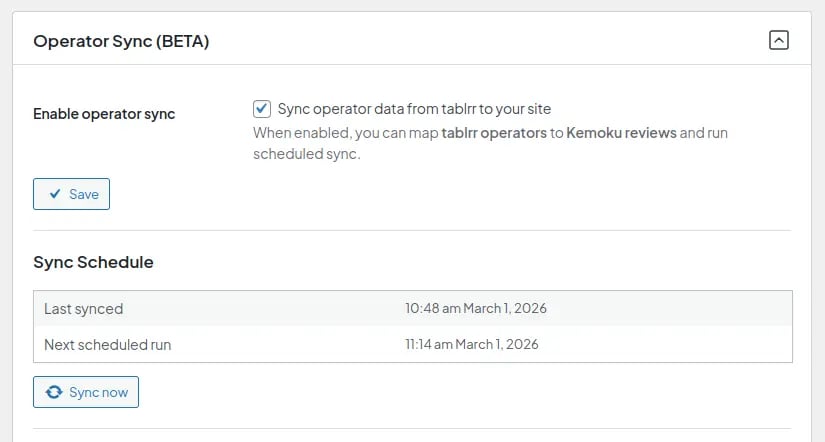
Inside the tablrr plugin settings on your WordPress site, you will see a section called "Operator Sync (BETA)", at this point, in this section there's a single checkbox labeled "Enable Operator Sync". Check this box.
Automatic vs. Manual Sync
By default, the plugin follows a specific sync schedule to keep your data fresh without overloading your server. It pulls your data every hour, checks if there are any modifications since the last check and updates the ACF fields accordingly.
However, if you have just made an urgent change (like updating a bonus for a big event), you don't have to wait. There is a Sync Now button that allows you to force an immediate update across your reviews.
Step 4 - Map Operators to Kemoku Reviews
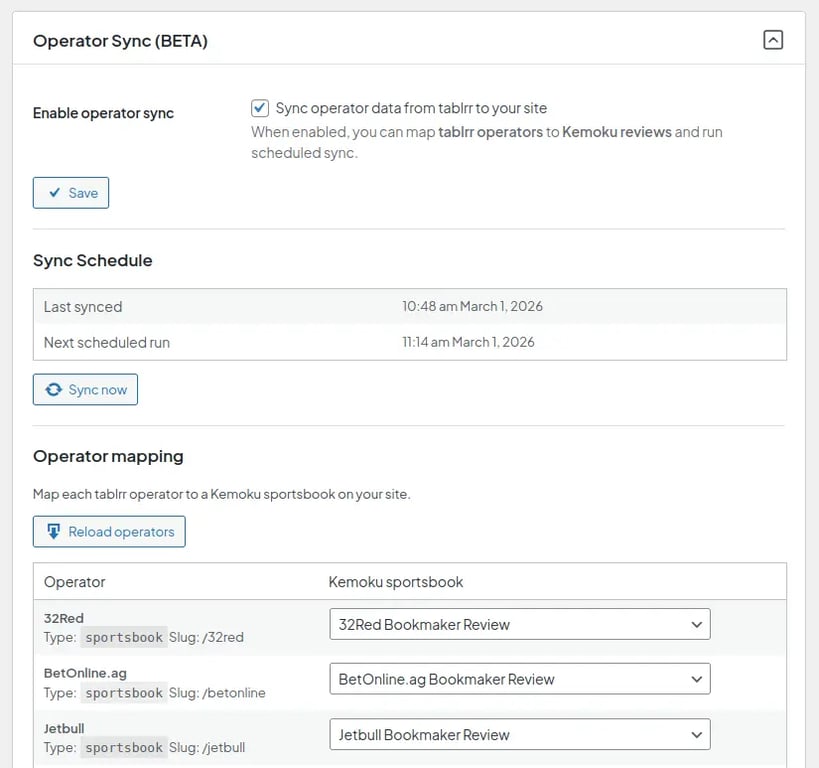
The plugin needs to know which tablrr operator corresponds to which Kemoku review. This is a one-time mapping and it's necessary because you may have more operators than you need on a specific website.
How Mapping Works
Inside your WordPress dashboard, you will find a mapping interface. Here, you'll see all your tablrr operators, for each one you want to sync, you select a Kemoku review from a dropdown and click "Save".
Because the integration is built specifically for these two tools, the plugin automatically recognizes your Kemoku ACF fields. It knows exactly where to "push" the bonus text, the payment methods, etc. so they appear properly in your existing Kemoku blocks.
Step 5 - Run Your First Sync
Now it is time to see the automation in action.
The First Pull
Hit the "Sync Now" button. The plugin will reach out to the tablrr API, pull the latest data for your mapped operators, and update the local ACF fields on your WordPress site.
Verifying the Results
To verify it worked, simply open one of your review pages. You should see the data you managed in tablrr appearing perfectly inside your Kemoku blocks.
From this point on, you no longer need to log into your WP dashboard just to update operator data. Any future changes you make in tablrr.app will be reflected here automatically.
The End of Repetitive Data Entry
Once your first sync is complete, your WordPress sites are no longer isolated databases. They're "display layers" for your central tablrr data - and that changes how you work.
Update a bonus or a link once in tablrr, and every mapped review across your network picks it up on the next sync. No logging in, no copy-pasting, no forgetting one site while the others are already updated.
Whether you manage 3 sites or 30, the maintenance time stays the same.
My Own Use Case: Kemoku Demos
This is not a theoretical article, I used these exact steps to automate data entry on the above mentioned Paris, Havana, and Manila demo websites. By connecting them to tablrr, I eliminated the need to log into those dashboards for data updates entirely.
You can read the full breakdown of how much time this saved me in my case study on tablrr.app.
Ready to Automate?
I built this integration because I was tired of logging into multiple dashboards just to keep my own demos looking current. If you are ready to stop the manual entry and start managing your data like a pro, you can get started at tablrr.app.

Written by Levon, Founder of DinoMatic
Hey, I'm Levon - a web developer who loves helping gambling and Forex affiliates build fast, SEO-friendly websites that convert. I've created WP themes like Spinoko, Akurai, and FXT, designed for lean setups that don't compromise on performance or rankings. I write from hands-on experience - I test, tweak, and share what works.